
01 / THE RIGHT VERSION
Use the Steam Anniversary Edition
The supported Steam listing is Age of Empires IV: Anniversary Edition. A Microsoft Store, PC Game Pass, or console entitlement is not a Steam license. Confirm your copy is in Steam before preparing this environment.
Age of Empires IV and Age of Empires II are separate games with different Mac options. The native Mac announcement for Definitive Edition concerns Age of Empires II, not IV. This guide describes the Windows version of IV running locally through GameToMac.
02 / BEFORE YOU DOWNLOAD
Age of Empires IV: Mac requirements
- Mac
- Apple Silicon, M1 or later, on macOS 26+. Intel Macs are not supported.
- Edition
- Age of Empires IV: Anniversary Edition on Steam.
- Storage
- Steam lists 50 GB. Leave additional room for compatibility components, updates, and any optional content.
- Account
- Your own Steam account with the game. Complete the game’s service prompts when required.
- Online play
- An internet connection and compatible game versions for everyone in the match.
GameToMac requirements describe this compatibility setup. Publisher specifications and edition details are linked in the sources below.
03 / INSTALL AND PLAY
How to play Age of Empires IV on Mac
Select Age of Empires IV
Open the game in GameToMac and choose Get started. Review the component license, then let the setup checks and preparation finish.
Sign in to the game’s Steam session
Use the Steam window opened by GameToMac. Complete Steam Guard if needed, then return to choose I’m signed in.
Install your Steam copy
Choose Install with Steam, keep the suggested folder, and let downloading and verification finish. Check Steam’s Downloads view for the current progress.
Launch from GameToMac
Choose Play now. Complete any game prompts, set your resolution and controls, and start with the tutorial or a small skirmish.
Check multiplayer before a long session
Let everyone finish their game updates, then test a short match using the mode you plan to play. Confirm you can load into the match and control units, not only enter a lobby.
Use GameToMac’s prepared Steam environment throughout. Installing through your ordinary macOS Steam client or another launcher does not complete these steps.
04 / MULTIPLAYER
Playing with friends on Windows
GameToMac’s supported-build testing includes online matches with Windows players. That is useful evidence for this route, but a successful match on one build is not a promise for all future patches, mods, or modes.
Before troubleshooting a connection, compare the game versions, let Steam finish updates on both machines, and use matching content and mods. A controlled short match is a better compatibility check than discovering a mismatch during a scheduled evening of play.
If a match fails, record whether it stops in the lobby, during loading, or after play begins. Include any desync or connection message. These stages point to different problems and help avoid unnecessary changes to an otherwise working installation.
05 / PERFORMANCE
Tune for the size of the battle
Make higher resolutions available
If you need a higher resolution, open Age of Empires IV in GameToMac, go to Game settings, and turn on Enable Retina resolution under Display. The change applies the next time Steam starts. Save and exit your game, close its Steam session in Game settings, then reopen it and launch Age of Empires IV. Choose your preferred resolution in the game’s graphics settings. Higher resolutions may reduce performance.
Start with a modest graphics preset and a lower resolution. Check camera movement, selecting groups, and issuing commands in a small skirmish. Then try a match with a larger army or more players before settling on your preferred settings.
A strategy game’s workload changes as the map fills. A responsive opening does not establish how the late game will perform. When comparing settings, use a similar save or scenario and change one option at a time.
There is no published Mac-by-Mac FPS table here. The chip, memory, map, unit count, and game build matter. If reducing resolution makes little difference, preserve those observations for support rather than assuming every slowdown is a graphics issue.
06 / TROUBLESHOOTING
When the empire will not load
The Mac compatibility check stops setup
Read the exact message in Show details. Confirm your chip, macOS version, and GameToMac version. Use Help with that information instead of changing system security settings to work around a check.
Steam finished but Play now is not available
Check for unpacking or verification, then confirm the default folder was used in the Steam session opened by GameToMac.
A patch introduces a launch or multiplayer problem
Finish the Steam update and verify game files if the launch still fails. Record the build and the failing stage. GameToMac may need a compatibility update when the game changes.
COMMON QUESTIONS
Age of Empires IV on Mac: FAQ
Can I play Age of Empires IV on an M1 Mac?
M1 or later and macOS 26+ meet GameToMac’s platform requirement. Your match size and graphics settings still determine whether performance is comfortable on your specific Mac.
Can I use PC Game Pass with this guide?
No. This guide uses the Steam edition. A PC Game Pass or Microsoft Store entitlement is not the Steam license required here.
Can Mac and Windows friends play together?
Online matches with Windows players have been tested with supported GameToMac builds. Match your game versions and test your intended mode after updates.
Is the native Age of Empires Mac release the same game?
The native release discussed in the linked Age of Empires II guide is Definitive Edition of II. This page covers IV through a Windows compatibility setup.
WHAT TO PLAY NEXT
More games for your Mac.
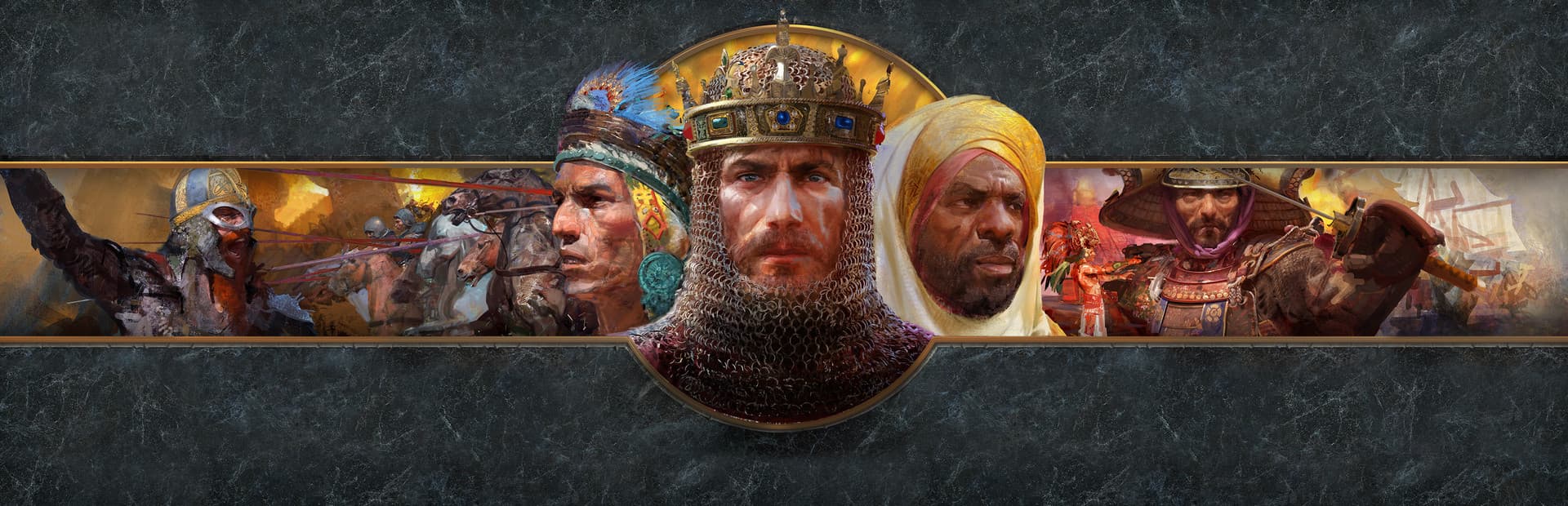
Age of Empires II: Definitive Edition on Mac
Compare Definitive Edition’s native Mac and Windows compatibility routes.

Company of Heroes 3 on Mac
Tactical World War II strategy with its own Steam installation and multiplayer checks.
Compare editions and requirements across the full supported games directory.
READY TO GET STARTED?
Bring Age of Empires IV to your library.
Apple Silicon · macOS 26+ · Your own Steam account
Download GameToMac