COUNTER-STRIKE 2 · MAC SETUP GUIDE
Counter-Strike 2.
On your Mac.
How to play Counter-Strike 2 on an Apple Silicon Mac with GameToMac and your own Steam account.
CS2 has no official native macOS version. GameToMac prepares the Windows Steam version for your Mac and guides you from setup to launch.
Download GameToMac
01 / BEFORE YOU START
Can your Mac run this setup?
You’ll need an Apple Silicon Mac, a Steam account, and an internet connection for setup and online play.
- Mac
- Apple Silicon (M1 or later). Intel Macs are not supported.
- System
- macOS 26 or later.
- Game
- Counter-Strike 2 on Steam. The base game is free to play.
- Storage
- Valve lists 85 GB for the game. Allow extra space for GameToMac’s components and future updates.
Valve lists Windows and Linux in its official CS2 requirements. GameToMac’s Mac requirements describe the compatibility setup, not a native port or a guaranteed frame rate.
02 / INSTALL AND PLAY
From your library to your first round.
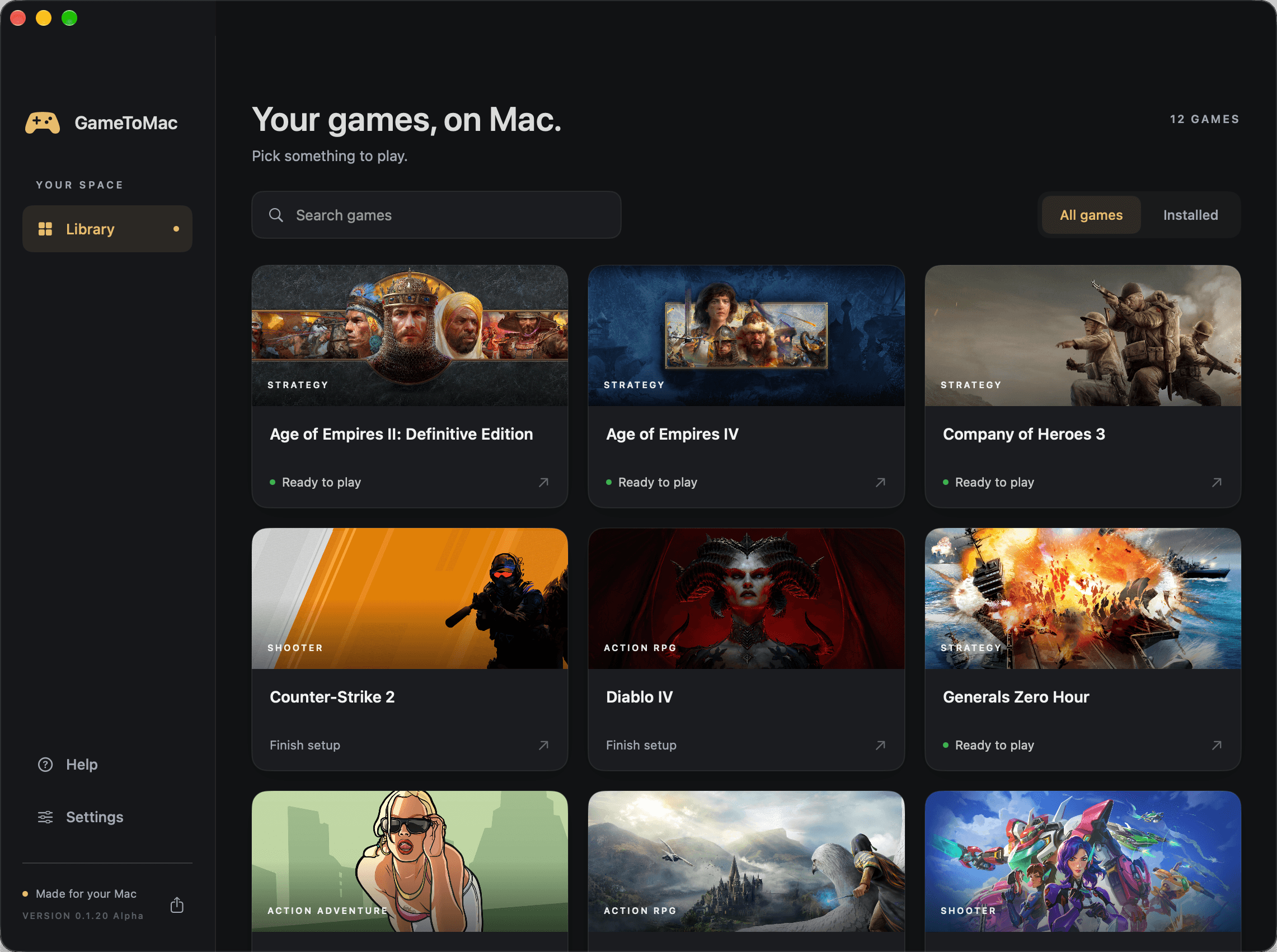
Open GameToMac and choose CS2
Download GameToMac, open the app, and select Counter-Strike 2 in your library. Choose Get started, review the component license, and let setup finish.
Sign in to Steam
Choose Open Steam to sign in. Use your existing Steam account in the Steam window and complete Steam Guard if prompted. Return to GameToMac and choose I’m signed in.
Install Counter-Strike 2
Choose Install with Steam and install CS2 in Steam’s suggested library folder. Use the Steam window opened by GameToMac. Leave Steam open until the download and installation finish.
Choose Play now
Return to GameToMac and choose Play now. On the first launch, GameToMac prepares graphics for your Mac before opening CS2. Let preparation finish; later game or system updates may require it again.
03 / WHAT TO EXPECT
Give your Mac room to play.
Performance depends on your Mac’s chip, available memory, resolution, graphics settings, and the map. Start with a lower resolution and modest graphics settings, then adjust after playing.
Performance and online services
We haven’t published a hardware-by-hardware CS2 benchmark here. There is no single FPS promise for all supported Macs. Game updates can affect compatibility, and support for individual competitive modes or third-party anti-cheat services should not be assumed.
Keep GameToMac and CS2 up to date. Steam handles game updates; GameToMac checks for app updates. A new game update may need a corresponding compatibility update.
04 / IF SOMETHING GETS IN THE WAY
Get back to the game.
Steam reports a missing executable
Check that you installed CS2 in the Steam window opened by GameToMac, using its suggested library folder. Launch from GameToMac after installation finishes. If it still fails, save the exact error before changing files or reinstalling.
The window or mouse input looks wrong
Try Fullscreen Windowed in CS2’s video settings if the menu is usable. If you cannot use the menu, open GameToMac’s Help for CS2 and include a screenshot when reporting the problem.
Setup or graphics preparation stops
Choose Show details in GameToMac. Include the complete message, your Mac model, macOS version, and GameToMac version when asking for help through the app. This helps identify the failed step without deleting your game installation.
05 / COMMON QUESTIONS
CS2 on Mac, explained.
Can you play CS2 on a Mac?
Yes, GameToMac provides a way to run the Windows Steam version on supported Apple Silicon Macs. This is a compatibility route, not an official native Mac edition of Counter-Strike 2.
Does this work on an Intel Mac?
No. GameToMac requires an Apple Silicon Mac (M1 or later) running macOS 26 or later. Check About This Mac in the Apple menu before downloading.
Is Counter-Strike 2 free?
The base game is free to play on Steam. Prime Status, optional upgrades, and in-game purchases are separate. Sign in with your own Steam account.
Do I use the Steam app I already have on my Mac?
Install CS2 through the Steam window opened by GameToMac. GameToMac prepares its own Steam environment for the Windows version; your normal macOS Steam installation is separate.
Can I use FACEIT or every competitive mode?
This guide does not establish FACEIT or every competitive mode as compatible. Anti-cheat services have their own requirements, and launching CS2 does not confirm support for each service. Check the service’s current requirements before relying on it.
Why is the first launch taking longer?
GameToMac prepares graphics locally before the first CS2 launch. Wait for the preparation step to finish. If it stops with an error, use Show details and include that text when asking for help.
READY WHEN YOU ARE
Bring CS2 to your library.
Apple Silicon · macOS 26+ · Your own Steam account
Download for MacMORE GAME GUIDES
Another way to team up.
For a hero-based shooter, read the Overwatch on Mac guide, including Battle.net linking and first-match graphics preparation. Prefer commanding an army? The Age of Empires IV Mac guide covers Steam setup and multiplayer checks with Windows friends.