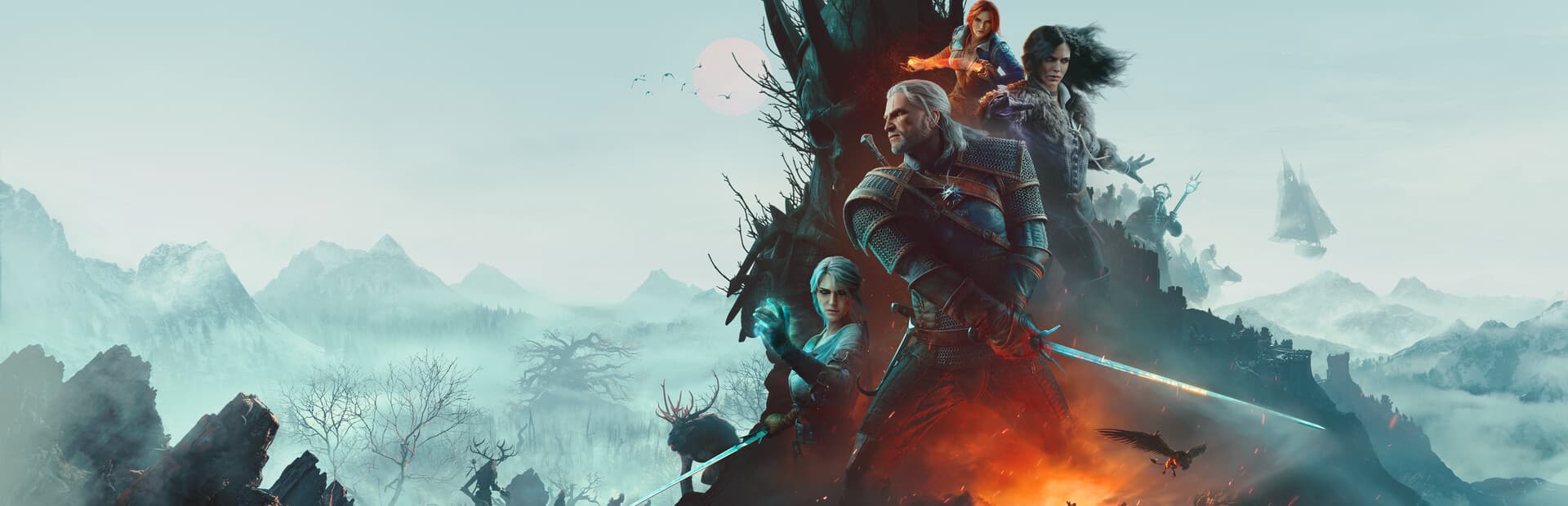
01 / THE RIGHT VERSION
Bring your Steam copy
Choose The Witcher 3 Remastered in GameToMac. This guide covers the supported Steam version; it does not cover GOG or console editions. Games and paid additional content are purchased separately.
02 / BEFORE YOU DOWNLOAD
The Witcher 3: Wild Hunt: Mac requirements
- Mac
- Apple Silicon (M1 or later), macOS 26 or later, and Rosetta.
- Game and account
- Your own Steam copy of The Witcher 3: Wild Hunt — Remastered and the Steam account that owns it.
- Storage
- At least 80 GB free for a fresh installation, plus room for updates. APFS storage is required; use GameToMac’s Storage setup for an external drive.
- Connection
- Internet access for Steam sign-in, installation, and updates.
GameToMac requirements describe this compatibility setup. Publisher specifications and edition details are linked in the sources below.
03 / INSTALL AND PLAY
How to play The Witcher 3: Wild Hunt on Mac
Choose The Witcher 3
Open GameToMac, select The Witcher 3 Remastered, and choose Get started.
Prepare your library
Follow the setup prompts. If you use an external drive, choose it through GameToMac’s Storage flow so the required APFS storage can be prepared.
Install through Steam
Sign in to the Steam window opened by GameToMac. Install the game in that client’s default library and wait for downloading and verification to finish.
Follow the path
Return to GameToMac and choose Play now. Launch here for later sessions too.
Use the default library in the Steam window opened for this game. For external exFAT drives, let GameToMac’s Storage flow prepare an APFS container before installing.
04 / CONTROLS-AND-SETUP
Ready for the road
Playing without a middle mouse button
Open Options → Key Bindings and assign Use Quick Access Item to a spare key, such as L.
Choose settings for your Mac
Start with modest graphics settings and adjust after playing. Performance depends on your Mac, resolution, and settings. GameToMac preserves your existing in-game settings and saves.
After a game update
If GameToMac reports that the installed version is not supported, check for a GameToMac update before trying again. Compatibility may need an update when Steam changes the game.
COMMON QUESTIONS
The Witcher 3: Wild Hunt on Mac: FAQ
Which store version is supported?
This GameToMac profile supports the Steam Remastered version of The Witcher 3: Wild Hunt.
How much space do I need?
Allow at least 80 GB for a fresh installation, plus additional room for updates. Install on APFS storage using GameToMac’s Storage setup.
Can I use a mouse without a middle button?
Yes. Under Options → Key Bindings, assign Use Quick Access Item to a spare key.
Does it work on Intel Macs?
GameToMac requires an Apple Silicon Mac, starting with M1, and macOS 26 or later.
WHAT TO PLAY NEXT
More games for your Mac.
Skyrim Special Edition on Mac
Explore another world of quests and ancient legends.
Elden Ring on Mac
Take on a darker open-world adventure.
Compare editions and requirements across the full supported games directory.
READY TO GET STARTED?
Bring The Witcher 3: Wild Hunt to your library.
Apple Silicon · macOS 26+ · Your own Steam account
Download GameToMac